개요
AWS EKS 기반의 쿠버네티스 환경에서 Web(React) - WAS(Node.js) - DB(MongoDB)로 이어지는 3-Tier 아키텍처를 설계하고 구축한다. GitHub Actions와 ArgoCD를 이용해 코드 변경부터 배포까지 자동화된 파이프라인을 구축하여 인프라의 선언적 관리(GitOps), 배포 속도 향상, 일관된 운영 환경 유지를 목표로 한다.
목적
- GitOps 모델 도입 : ArgoCD를 활용하여 Git 저장소를 "진실의 원천(Single Source of Truth)"으로 정의하고, 클러스터와 Git 간의 자동 동기화 체계 구축.
- CI/CD 역할 분리 : GitHub Actions는 빌드 및 이미지 생성(CI)에 집중하고, ArgoCD는 배포 및 상태 유지(CD)에 집중하는 최신 클라우드 네이티브 아키텍처 적용.
- 선언적 인프라 관리 : 모든 K8s 리소스를 코드(YAML)로 관리하여 환경 재현성 확보.
- 배포 생산성 및 속도 향상 : 배포 주기를 단축하여 비즈니스 요구사항에 기민하게 대응 가능.
- 운영 안정성 극대화 : 장애 시 Git의 이전 커밋으로 즉시 복구(Revert)할 수 있는 기능을 통해 평균 복구 시간(MTTR)을 획기적으로 개선.
- 가시성 확보 : ArgoCD 대시보드를 통해 현재 애플리케이션의 배포 상태 및 리소스 관계를 한눈에 파악 가능.
- 인프라 비용 효율화 : AWS EKS의 오토스케일링 기능을 활용하여 트래픽에 따른 유연한 리소스 관리 가능.
작업순서
0단계: Git Repository 구성
1단계: AWS 인프라 및 권한 준비
2단계: ArgoCD 설치 및 외부 노출
3단계: CI 구성 (GitHub Actions)
4단계: ArgoCD에서 애플리케이션 생성
5단계: 최종 점검
참고소스)
https://github.com/Aakibgithuber/Three-tier-Application-Deployment-
0단계: Git Repository 구성
참고소스의 파일구성

이중 k8s_manifests 폴더의 yaml 파일들만 추려서
3tier-manifest 라는 레포지토리를 새로 만든다
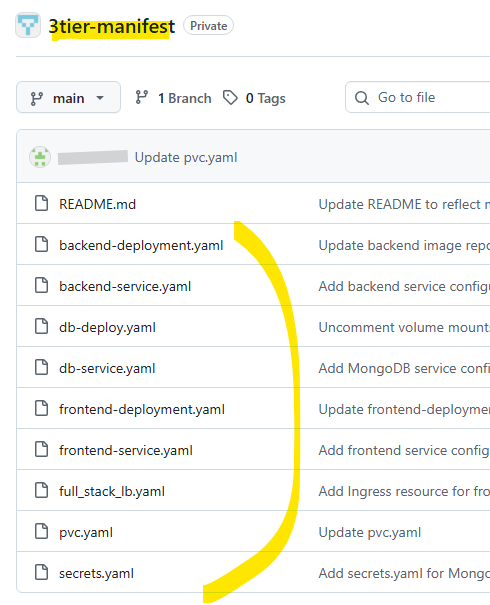
나머지 폴더들은 3tier-app 이라는 레파지토리로 만든다
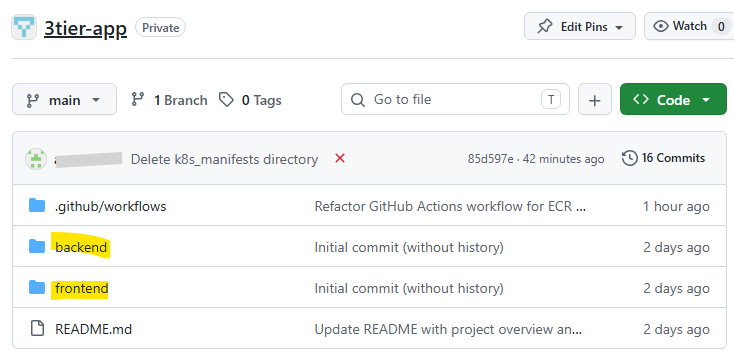
.github/workflows 폴더는 아래 Github Action 설정 항목에서 작성한다.
1단계: AWS 인프라 및 권한 준비
1. ECR(이미지 저장소) 생성 ( GitHub Actions가 빌드한 이미지를 저장할 공간)
aws configure
[3tier-user 액세스키]
[3tier-user 비밀액세스키]


# 프론트엔드, 백엔드, DB 각각 생성 (아시아태평양서울 리전)
aws ecr create-repository --repository-name 3tier-frontend --region ap-northeast-2
aws ecr create-repository --repository-name 3tier-backend --region ap-northeast-2
aws ecr create-repository --repository-name 3tier-db --region ap-northeast-2

Git 소스 내려받고 빌드 후 리포지토리에 올린다.

# clone
git clone git@github.com:2026test-lab/3tier-app.git
참고 ) 아래 페이지의 4. Docker 이미지 빌드 항목 참고
AWS, k8s 3tier 설정
참고)https://aakibkhan1.medium.com/project-8-three-tier-application-deployment-on-kubernetes-bf9323de40e0 Project 8 → Three tier application deployment on Kuberneteswhat do you mean by three tier ?aakibkhan1.medium.com Overview3계층(3-Tier)프레젠
mamdragors.tistory.com
2. IAM 사용자 설정 (GitHub용)
GitHub Actions가 AWS에 접근할 수 있도록 Access Key와 Secret Key가 필요합니다.
- 권한: AmazonEC2ContainerRegistryFullAccess, AmazonEKSClusterPolicy

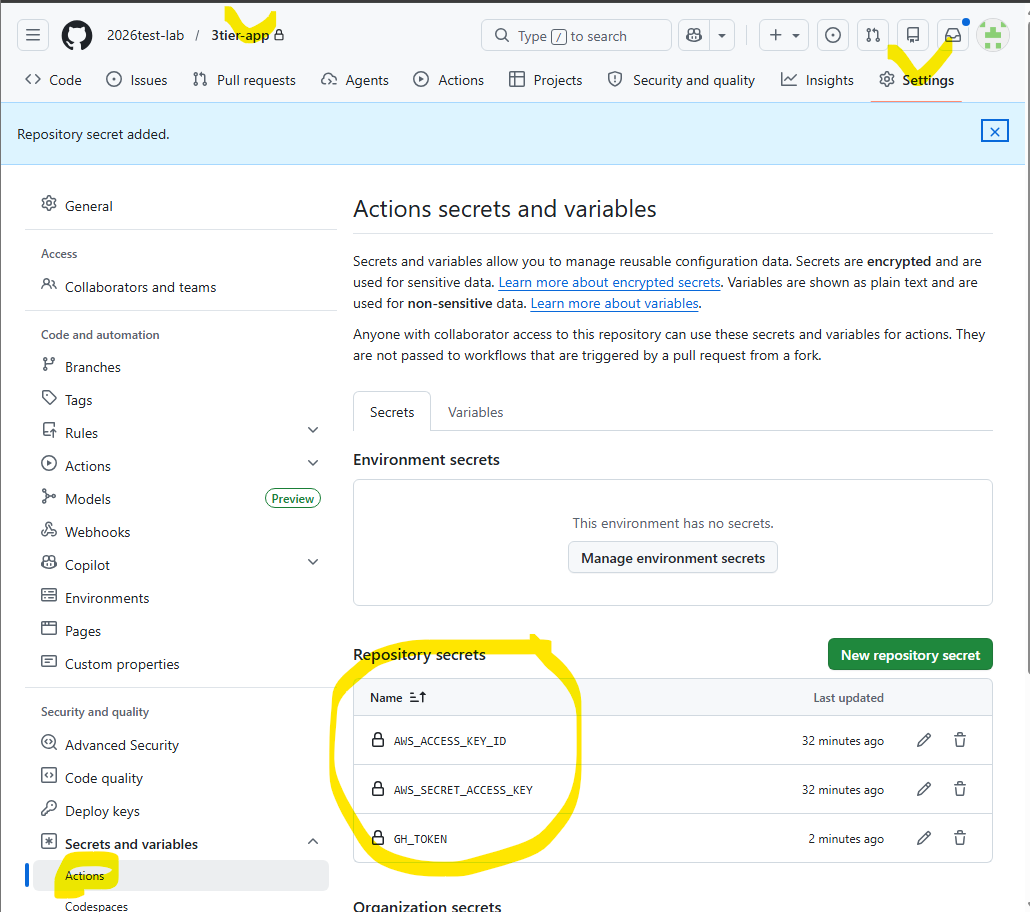
- 발급받은 키는 GitHub App Repo > Settings > Secrets > Actions에 AWS_ACCESS_KEY_ID, AWS_SECRET_ACCESS_KEY로 등록하세요.
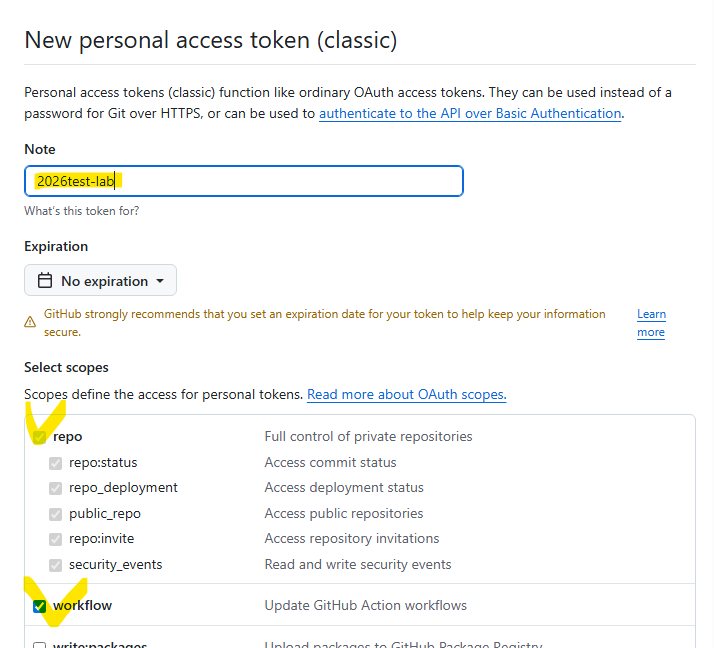
Github Personal Access Token 생성


Secret 등록
#첫 번째 Secret 등록
Name: AWS_ACCESS_KEY_ID
Value: (AWS IAM에서 발급받은 액세스 키 입력)

#두 번째 Secret 등록
Name: AWS_SECRET_ACCESS_KEY
Value: (AWS IAM에서 발급받은 비밀 액세스 키 입력)

#추가 권장 Secret (매니페스트 업데이트용)
Name: GH_TOKEN
Value: (GitHub에서 발급받은 Personal Access Token - repo 권한 포함)
Secret 등록 완료 화면
2단계: ArgoCD 설치 및 외부 노출
EKS 클러스터 생성
# 1. EKS 클러스터 생성 (15분정도 소요됨)
eksctl create cluster \
  --name 3tier-cluster \
  --region ap-northeast-2 \
  --nodegroup-name 3tier-nodes \
  --node-type t3.small \
  --nodes 2 \
  --nodes-min 1 \
  --nodes-max 3 \
  --managed

# 2. 생성 과정 확인
ASW Console > CloudFormation > 스택 > 스택 상세 > 이벤트 탭에서 진행상태 확인가능

# 3. 연결 정보(kubeconfig) 강제 업데이트. <클러스터명>과 <리전>을 본인이 eksctl로 생성할 때 쓴 이름
aws eks update-kubeconfig --region ap-northeast-2 --name 3tier-cluster

# 클러스터 준비 상태 확인
aws sts get-caller-identity
aws eks describe-cluster --name 3tier-cluster --query "cluster.status"

# 노드 그룹 확인 (status 가 ACTIVE 로 나와야 함)
eksctl get nodegroup --cluster 3tier-cluster


# 현재 컨텍스트 확인 (3tier-cluster 로 나와야 함)
kubectl config current-context

# 3. 클러스터 연결 확인.노드 2대가 'Ready' 상태인지 확인
kubectl get nodes

EKS 클러스터에 ArgoCD를 설치하고 웹 UI에 접속할 수 있도록 설정합니다.
# 1. 네임스페이스 생성 및 설치
kubectl create namespace argocd
kubectl apply -n argocd -f https://raw.githubusercontent.com/argoproj/argo-cd/stable/manifests/install.yaml

# 2. 서비스 노출 (Classic Load Balancer 자동 생성)
kubectl patch svc argocd-server -n argocd -p '{"spec": {"type": "LoadBalancer"}}'

# 3. 생성된 로드밸런서 주소 확인 (EXTERNAL-IP 확인까지 1~2분 소요)
kubectl get svc -n argocd argocd-server

# 4. 초기 비밀번호 확인 (ID: admin)
kubectl -n argocd get secret argocd-initial-admin-secret -o jsonpath="{.data.password}" | base64 -d

# 5. 앱이 배포될 네임스페이스 생성
kubectl create namespace 3tier-app

# 6. yaml 내부에 선언된 namespace 가 있다면 생성
kubectl create namespace 3tier-test
ArgoCD UI 접속 (ESTERNAL-IP 로 접속 확인)
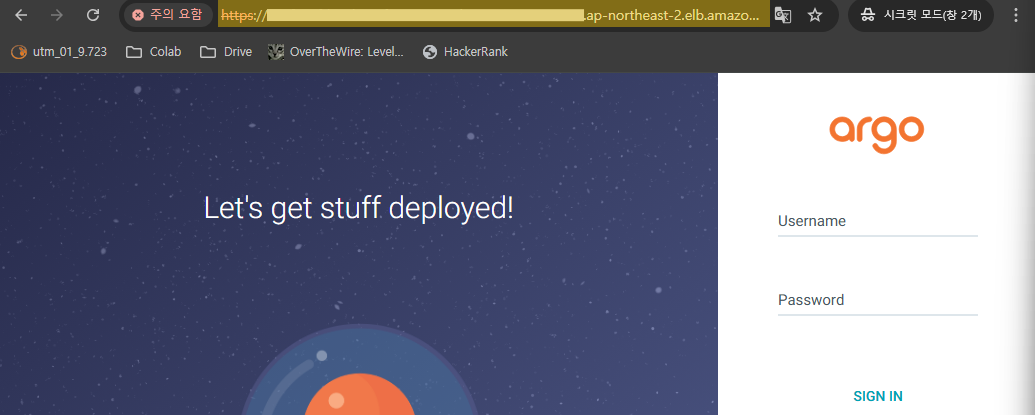
로그인 (ID / PW)
- Username: admin
- Password: 아까 4번 명령어(base64 -d)로 확인했던 그 문자열을 입력합니다.
로그인 성공

3단계: CI 구성 (GitHub Actions)
애플리케이션 코드 리포지토리(3tier-app)에 .github/workflows/main.yml을 작성
name: Build and Push to ECR

on:
  push:
    branches: [ "main" ]

jobs:
  deploy:
    runs-on: ubuntu-latest
    steps:
    - name: Checkout
      uses: actions/checkout@v4 # 최신 v4로 변경

    - name: Configure AWS credentials
      uses: aws-actions/configure-aws-credentials@v4 # 최신 v4로 변경
      with:
        aws-access-key-id: ${{ secrets.AWS_ACCESS_KEY_ID }}
        aws-secret-access-key: ${{ secrets.AWS_SECRET_ACCESS_KEY }}
        aws-region: ap-northeast-2

    - name: Login to Amazon ECR
      id: login-ecr
      uses: aws-actions/amazon-ecr-login@v2 # 최신 v2로 변경 (mask-password 자동 적용)

    - name: Build and Push Image
      env:
        ECR_REGISTRY: ${{ steps.login-ecr.outputs.registry }}
      run: |
        # 1. Frontend 빌드 !!! 개인 AWS 저장소 이름으로 한다. !!!
        docker build -t $ECR_REGISTRY/3tier-frontend:${{ github.sha }} ./frontend
        docker push $ECR_REGISTRY/3tier-frontend:${{ github.sha }}

        # 2. Backend 빌드  !!! 개인 AWS 저장소 이름으로 한다. !!!
        docker build -t $ECR_REGISTRY/3tier-backend:${{ github.sha }} ./backend
        docker push $ECR_REGISTRY/3tier-backend:${{ github.sha }}

    - name: Update Manifest Repo
      run: |
        git config --global user.email "actions@github.com"
        git config --global user.name "GitHub Actions"

        # Manifest 저장소 클론 !!! 개인 저장소 주소로 한다. !!!
        git clone https://${{ secrets.GH_TOKEN }}@github.com/2026test-lab/3tier-manifest.git
        cd 3tier-manifest

        # 파일 존재 여부 확인 (에러 방지용 로그)
        ls -al

        # frontend-deployment.yaml 수정 !!! 본인이 작업한 파일명으로 한다. !!!
        if [ -f "frontend-deployment.yaml" ]; then
          sed -i "s|image: .*3tier-frontend:.*|image: ${{ steps.login-ecr.outputs.registry }}/3tier-frontend:${{ github.sha }}|g" frontend-deployment.yaml
        fi

        # backend-deployment.yaml 수정 !!! 본인이 작업한 파일명으로 한다. !!!
        if [ -f "backend-deployment.yaml" ]; then
          sed -i "s|image: .*3tier-backend:.*|image: ${{ steps.login-ecr.outputs.registry }}/3tier-backend:${{ github.sha }}|g" backend-deployment.yaml
        fi

        git add .
        # 변경 사항이 있을 때만 커밋
        if ! git diff --cached --quiet; then
          git commit -m "Update images for commit ${{ github.sha }}"
          git push
        else
          echo "No changes to commit"
        fi
4단계: ArgoCD에서 애플리케이션 생성
이제 ArgoCD 웹 UI(아까 확인한 로드밸런서 주소)에 접속하여 배포 설정을 합니다.
Repository 등록: Settings > Repositories에서 Manifest Repo 주소와 Personal Access Token을 등록합니다
- 토큰 생성 (github > Settings > Developer Settings > Personal access tocke )

생성된 토큰값 복사
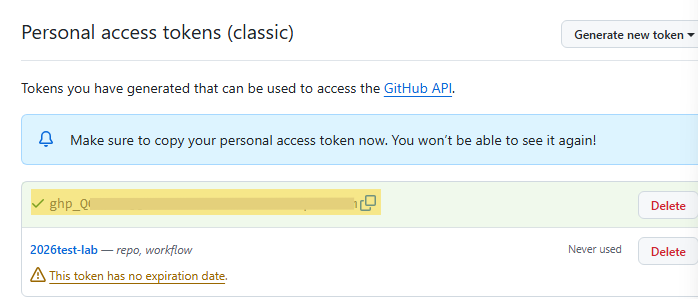
ArgoCD UI에서 연결
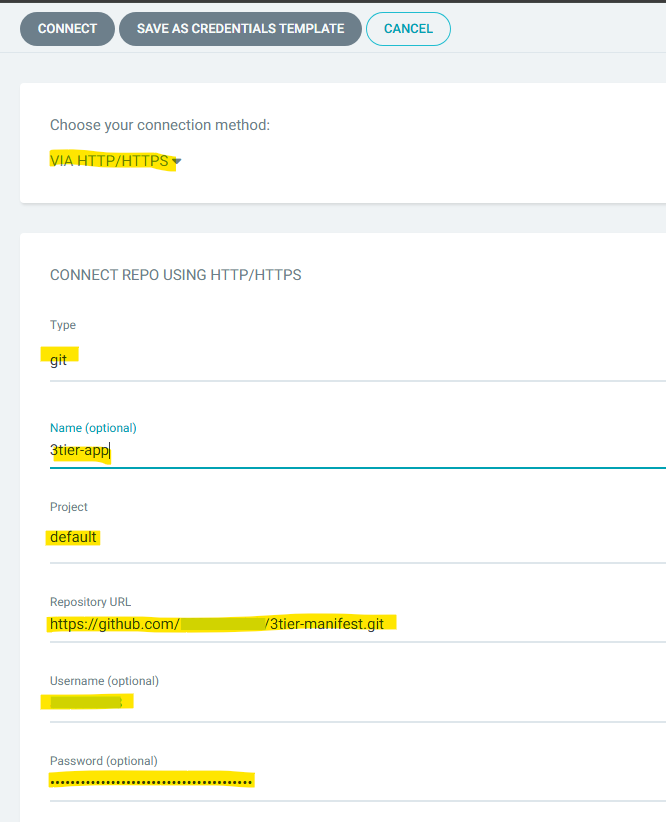
ArgoCD 왼쪽 메뉴 Settings (톱니바퀴) → Repositories 클릭 + CONNECT REPO 버튼 클릭
설정을 아래와 같이 입력
- Choose connection method: via HTTPS 선택
- Type: git
- Project: default
- Repository URL: 내 Private 레포지토리 주소 (예: https://github.com/사용자명/레포이름.git)
- Username: 본인의 GitHub 아이디
- Password: 위 1단계에서 복사한 PAT(토큰)를 여기에 붙여넣으세요. (비밀번호가 아닙니다!)
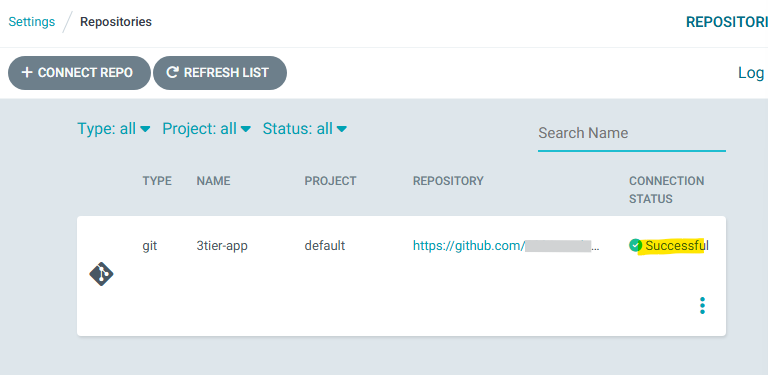
CONNECT 클릭 후 접속 성공 확인
Application 생성: 점3개 클릭하고 [+ NEW APP] 클릭
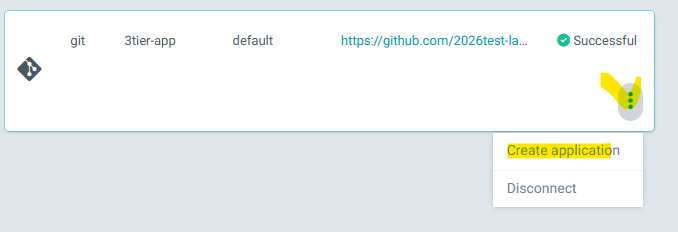
- Application Name: 3tier-app
- Project: default
- Sync Policy: Automatic ( 수동으로 확인하려면 Manual 로 설)
- (Self-heal 체크 하면 aws 프리티어에서는 메모리 부족으로 죽을 수 있음.)
- Source:
- Repository URL: 방금 연결한 Private 레포지토리 선택
- Revision: main (또는 작업 중인 브랜치명)
- Path: YAML 파일들이 모여 있는 폴더 경로 (예: k8s/manifests 또는 . (루트 폴더인 경우) )
- Destination:
- Cluster URL: https://kubernetes.default.svc
- Namespace: 3tier-app (없으면 ArgoCD가 자동으로 생성하도록 Auto-Create Namespace 체크)
[Create] 클릭하면 생성된다.

진행상황 확인 가능

DB 생성이 안되고 있다.
kubectl get po 로 po 이름 확인하고 kubectl describe po [db-pod이름] 으로 확인해보니
volumeBinding 이 되지 않고 있다.

nodegroup 에 권한을 추가
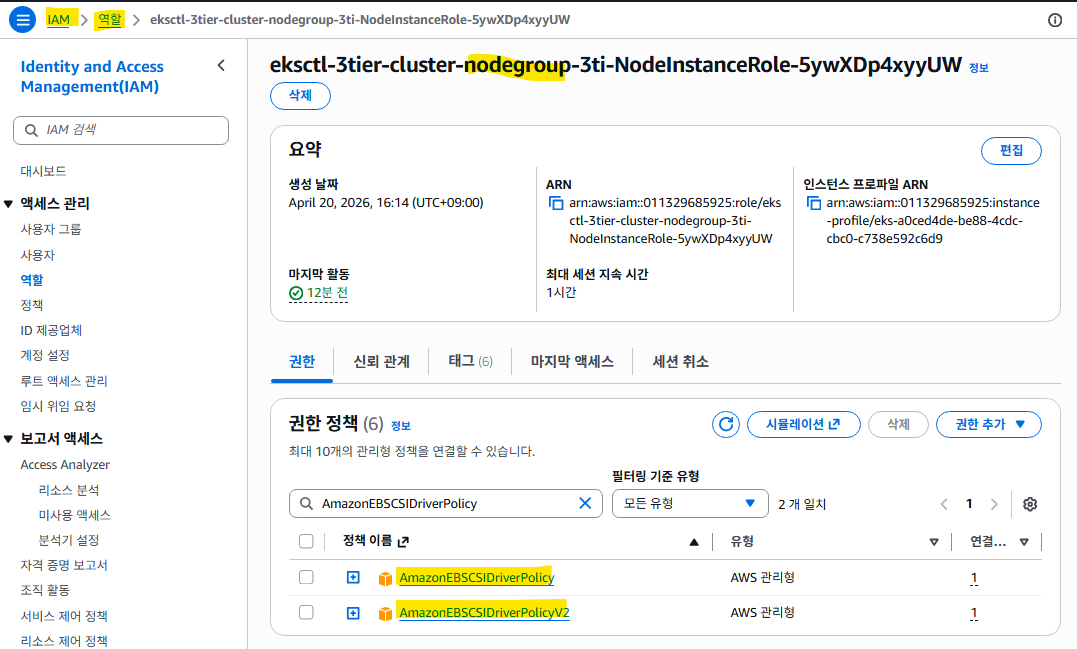
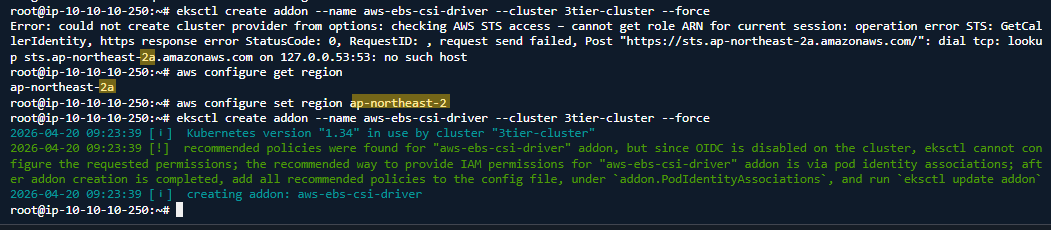
# 현재 설정 확인
aws configure get region

# 만약 ap-northeast-2a 처럼 'a'가 붙어있다면 아래 명령어로 수정
aws configure set region ap-northeast-2

# DNS 설정 초기화 (Ubuntu/Linux 환경인 경우)
sudo systemctl restart systemd-resolved

# 드라이버 설치
eksctl create addon --name aws-ebs-csi-driver --cluster 3tier-cluster --force
DB POD 가 올라왔는지 다시 확인
kubectl describe po [db-pod이름]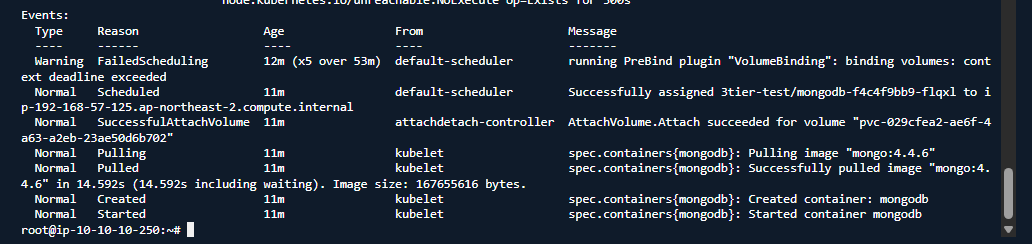
DB는 올라왔지만 로드밸런서가 올라오지 않았다.
#컨트롤러 설치 여부 확인
kubectl get deployment -n kube-system aws-load-balancer-controller

# Error from server (NotFound): deployments.apps "aws-load-balancer-controller" not found
# 컨트롤러가 설치되어 있지 않다면? 아래 내용 확인

# 1. IAM Policy 생성 (이미 있을 수도 있습니다)
curl -O https://raw.githubusercontent.com/kubernetes-sigs/aws-load-balancer-controller/v2.5.4/docs/install/iam_policy.json
aws iam create-policy \
    --policy-name AWSLoadBalancerControllerIAMPolicy \
    --policy-document file://iam_policy.json

# 2. Service Account 생성
eksctl create iamserviceaccount \
  --cluster=3tier-cluster \
  --namespace=kube-system \
  --name=aws-load-balancer-controller \
  --role-name AmazonEKSLoadBalancerControllerRole \
  --attach-policy-arn=arn:aws:iam::[본인계정ID]:policy/AWSLoadBalancerControllerIAMPolicy \
  --approve

# 3. Helm을 이용한 컨트롤러 설치
helm repo add eks https://aws.github.io/eks-charts
helm install aws-load-balancer-controller eks/aws-load-balancer-controller \
  -n kube-system \
  --set clusterName=3tier-cluster \
  --set serviceAccount.create=false \
  --set serviceAccount.name=aws-load-balancer-controller
여기까지 했는데 안되서 Helm 을 삭제하고 재생성함
Step A: 기존 Helm 삭제
helm uninstall aws-load-balancer-controller -n kube-systemStep B: IAM OIDC 공급자 생성 (안 하셨다면 필수)
eksctl utils associate-iam-oidc-provider --cluster 3tier-cluster --approveStep C: Service Account 재생성
이미 있을 수 있으니 --override-existing-serviceaccounts 옵션을 추가
eksctl create iamserviceaccount \
  --cluster=3tier-cluster \
  --namespace=kube-system \
  --name=aws-load-balancer-controller \
  --role-name AmazonEKSLoadBalancerControllerRole \
  --attach-policy-arn=arn:aws:iam::011329685925:policy/AWSLoadBalancerControllerIAMPolicy \
  --approve \
  --override-existing-serviceaccounts
Step D: Helm 재설치
helm install aws-load-balancer-controller eks/aws-load-balancer-controller \
  -n kube-system \
  --set clusterName=3tier-cluster \
  --set serviceAccount.create=false \
  --set serviceAccount.name=aws-load-balancer-controller
EXTERNAL-IP 가 출력되었다.

ingress 주소로 접속해본다

접속은 되는데 거부당함

작업중 인스턴스를 중지하려면 노드그룹의 대수를 0으로 만들어야 한다.
안그러면 자꾸 새로운 노드 생김
# 노드 그룹 이름을 확인
eksctl get nodegroup --cluster 3tier-cluster

# 대수를 0으로 만들면 현재 돌아가는 인스턴스들이 안전하게 제거됩니다.
eksctl scale nodegroup --cluster=3tier-cluster --name=3tier-nodes --nodes=0 --nodes-min=0 --nodes-max=1
다시 시작하려면 마스터 인스턴스에서 노드대수 변경
EKS에서 각 인스턴스 타입별로 가질 수 있는 파드의 최대 개수는 제한되어 있음
t3.small의 경우 최대 약 11개 정도의 파드만 수용 가능
때문에 node 갯수를 3개로 해야 argocd 가 정상 실행 됨
eksctl scale nodegroup --cluster=3tier-cluster --name=3tier-nodes --nodes=3 --nodes-min=2 --nodes-max=3
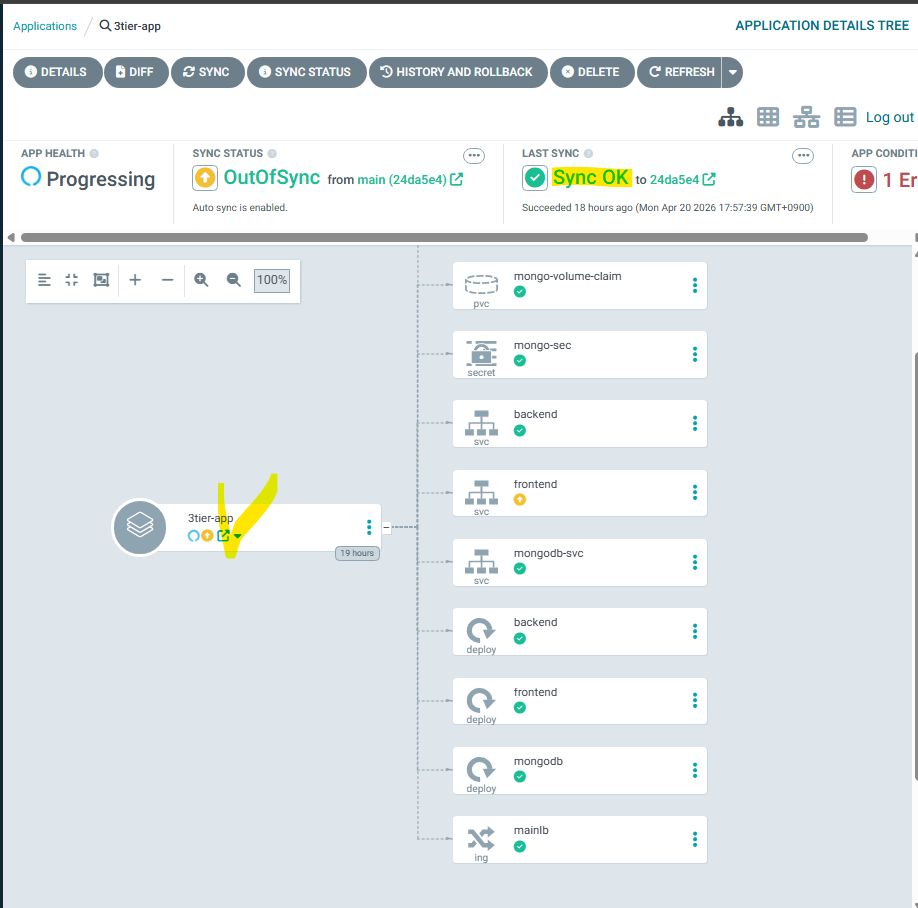
argoCD 에서 어플리 케이션이 정상 실행 됨을 확인
3tier-app 에서 새창 버튼을 클릭하면 배포된 앱이 실행된다.
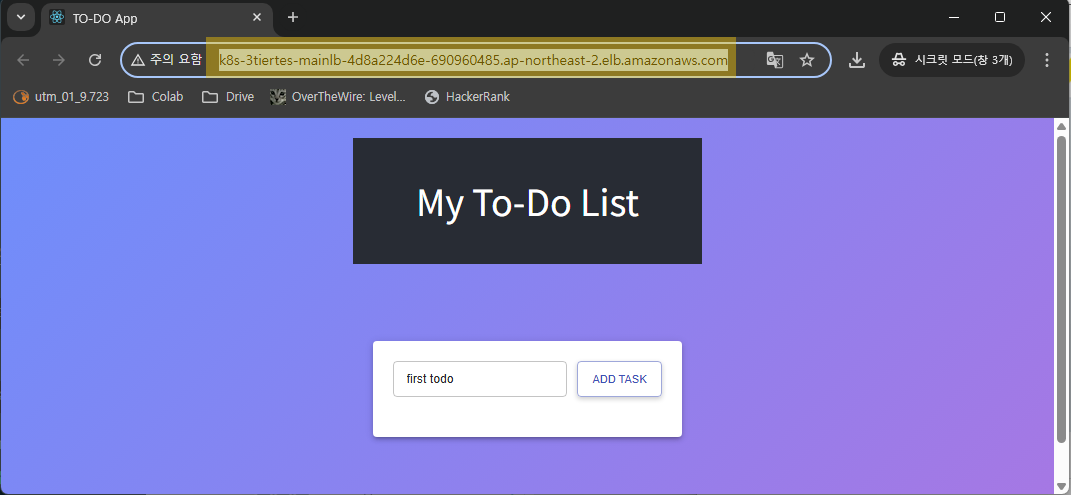
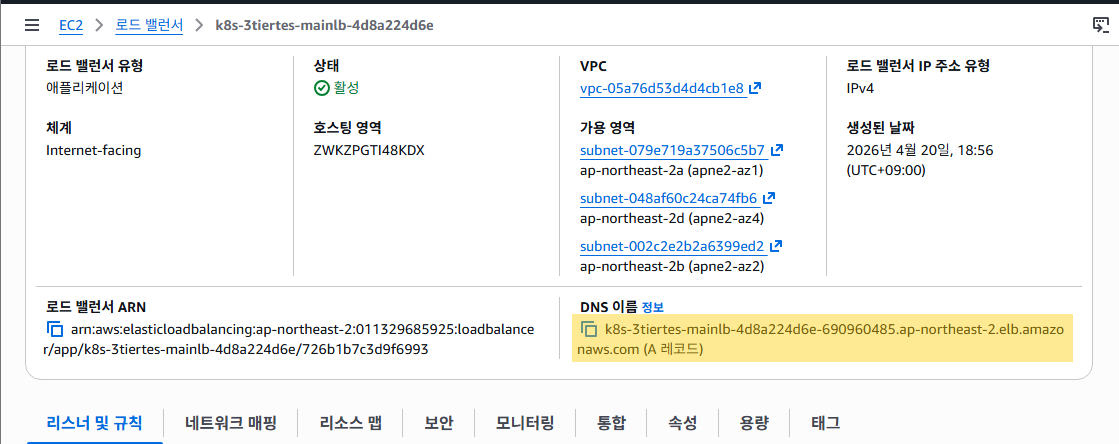
AWS 의 로드밸런서 화면에서도 확인할 수 있다.
Route53 에서 도메인 연결


5단계: 최종 점검
- 코드 수정: 프론트엔드나 백엔드 코드를 살짝 수정하고 git push 합니다.

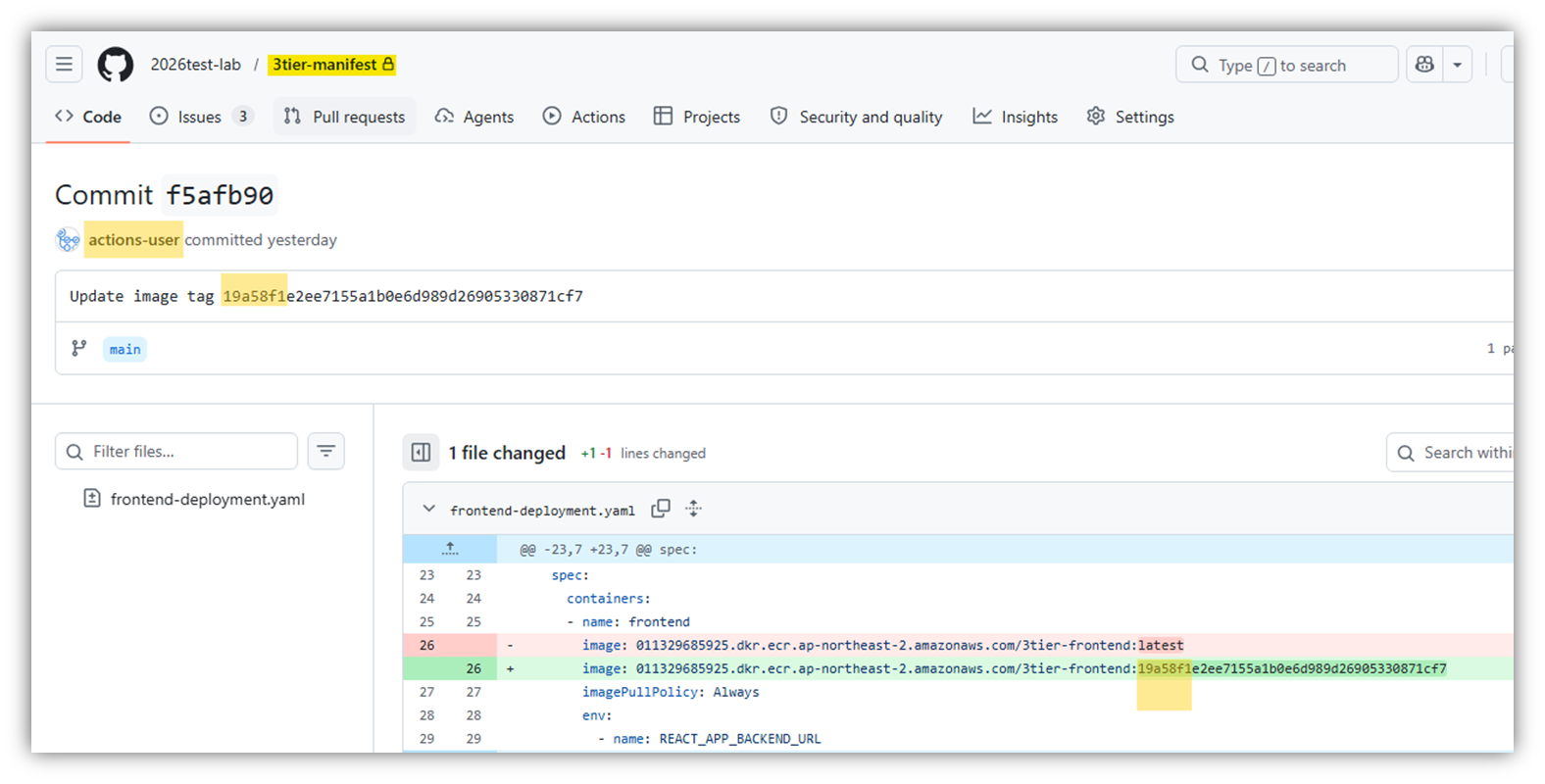
GIT 에 커밋된거 확인

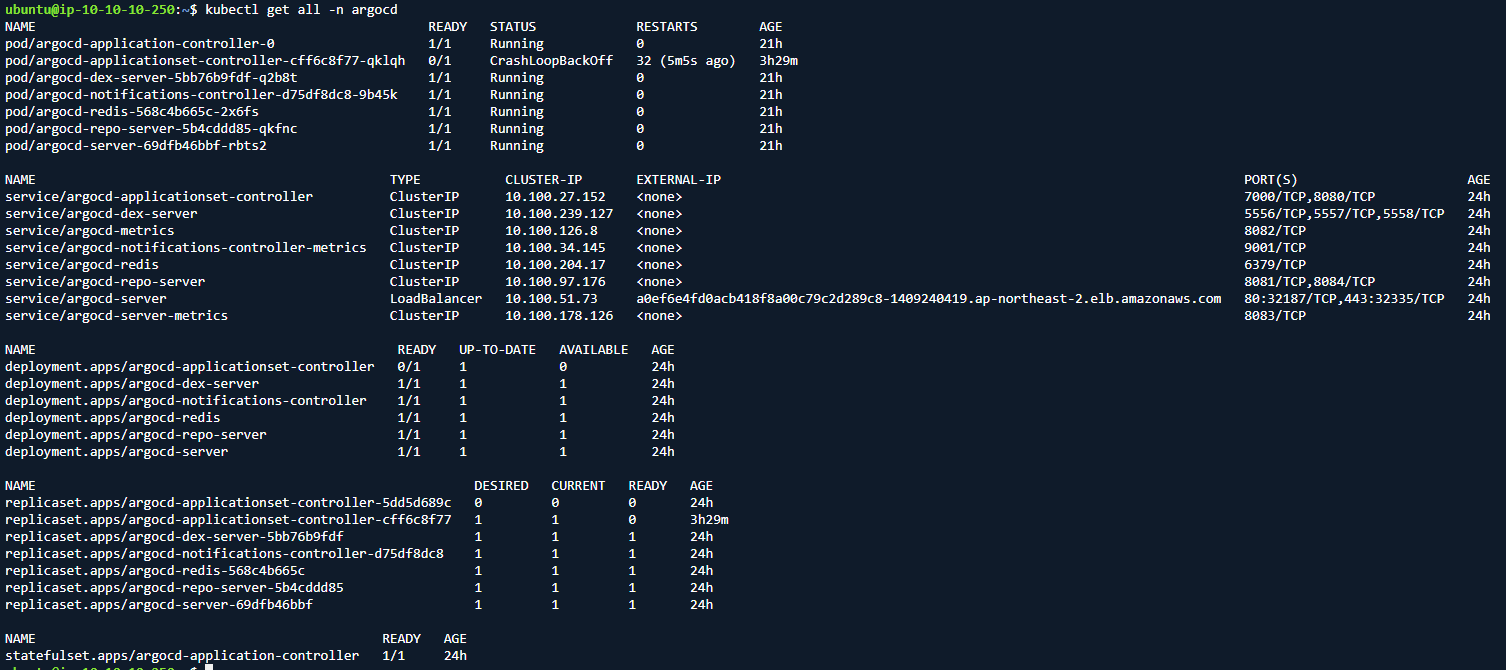
소스변경 후 argoCD sync 중 오류가 발생 하여
: << 'COMMENT'
argocd-applicationset-controller 에서 에러
{"error":"failed to get restmapping: no matches for kind \"ApplicationSet\" in version
\"argoproj.io/v1alpha1\"","kind":"ApplicationSet.argoproj.io","level":"error",
"logger":"controller-runtime.source.Kind","msg":"if kind is a CRD,
it should be installed before calling Start","time":"2026-04-21T04:18:57Z"}
COMMENT

# ArgoCD CRD 재설치
kubectl apply -n argocd -f https://raw.githubusercontent.com/argoproj/argo-cd/stable/manifests/install.yaml

# 컨트롤러 파드 재시작 (Deployment를 재시작하면 파드가 새로 뜹니다)
kubectl rollout restart deployment argocd-applicationset-controller -n argocd# 파드 상태 확인

# 상태 확인
kubectl get pods -n argocd
여기서 많은 오류가 발생하였다.
yaml 파일의 url, namespace, 파일명 등 설정 부분들을 다시 확인하자.
2. CI 확인: GitHub Actions 탭에서 빌드와 ECR 푸시, 매니페스트 업데이트가 성공하는지 봅니다.
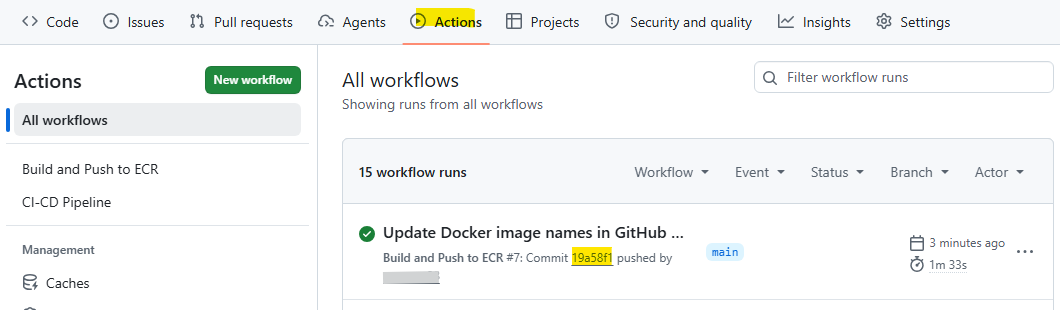
동일한 이미지 태그로 ECR 업로드 된것 확인
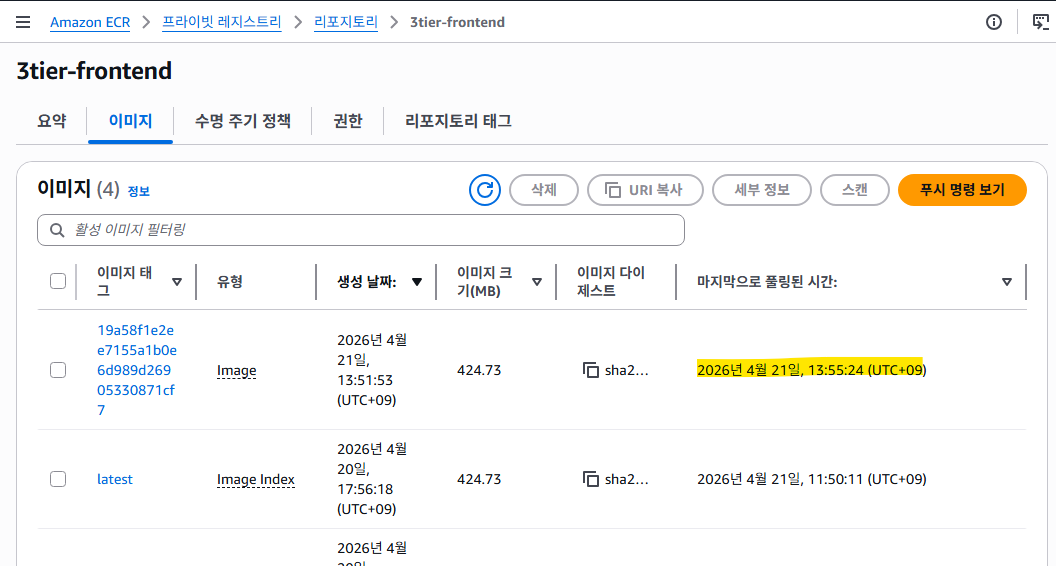
yaml 파일의 이미지 해시가 ECR 이미지 태그로 변경됨
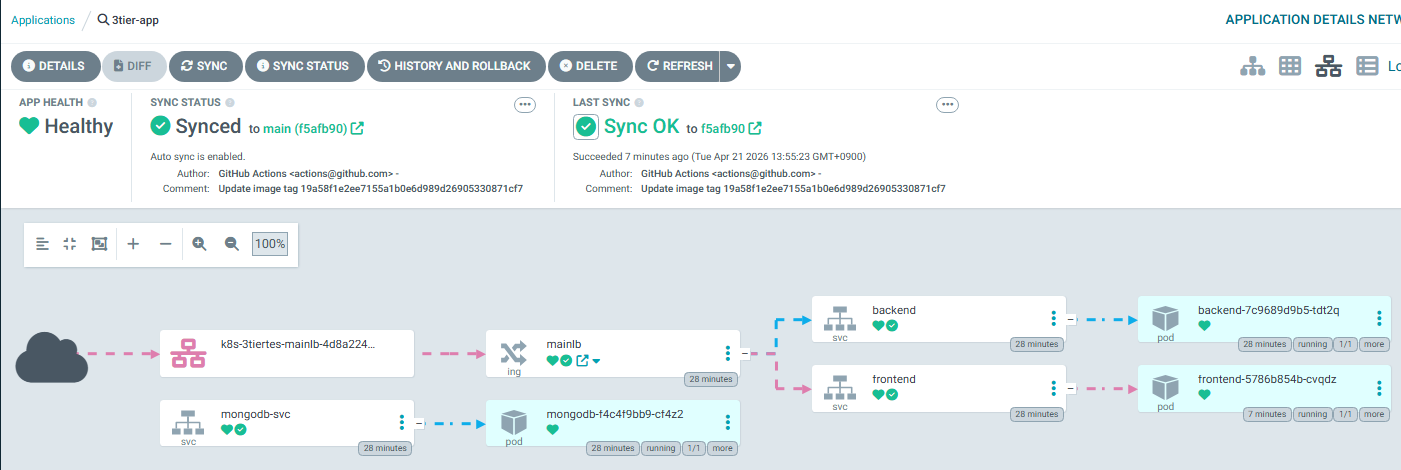
3. CD 확인: ArgoCD UI에서 OutOfSync가 뜨다가 자동으로 Synced로 변하며 EKS의 Pod가 교체되는지 확인합니다.
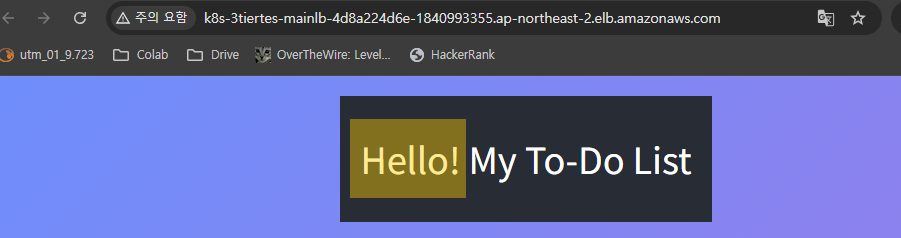
교체 후 페이지 에 내용 반영된 것확인
argoCD 에서전체 구성도 확인

네트워크 상태 확인 DB 와의 연결이 없다.
소소하게 Docker image url 이 못되고, 계정이 생성안되는 오류가 있어서 수정하고 다시 sync
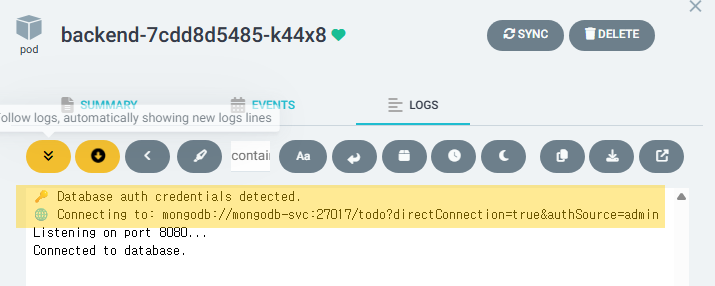
backend pod 로그에 DB 접속시 설정한 로그가 출력되는것 확인

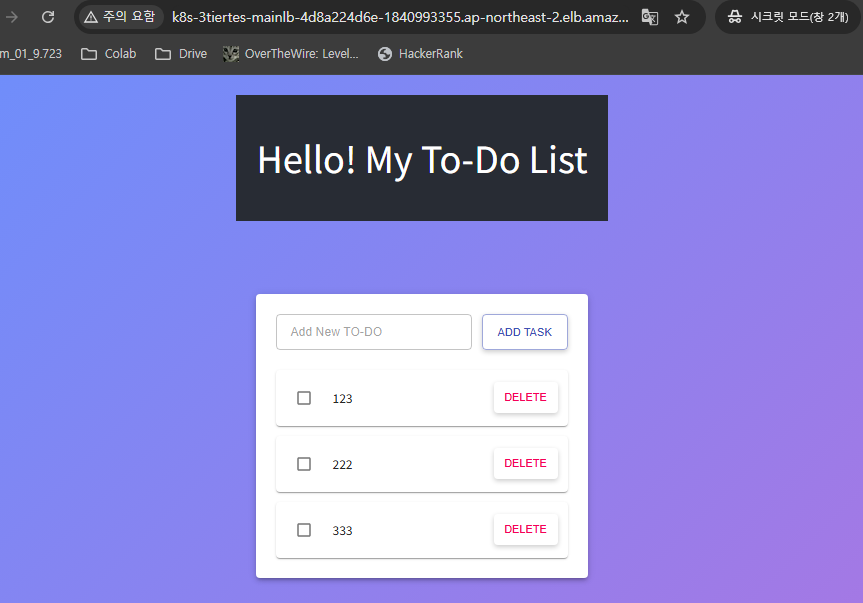
이제 웹화면에서 할일목록을 추가 삭제할 수 있다.
전체 구성도
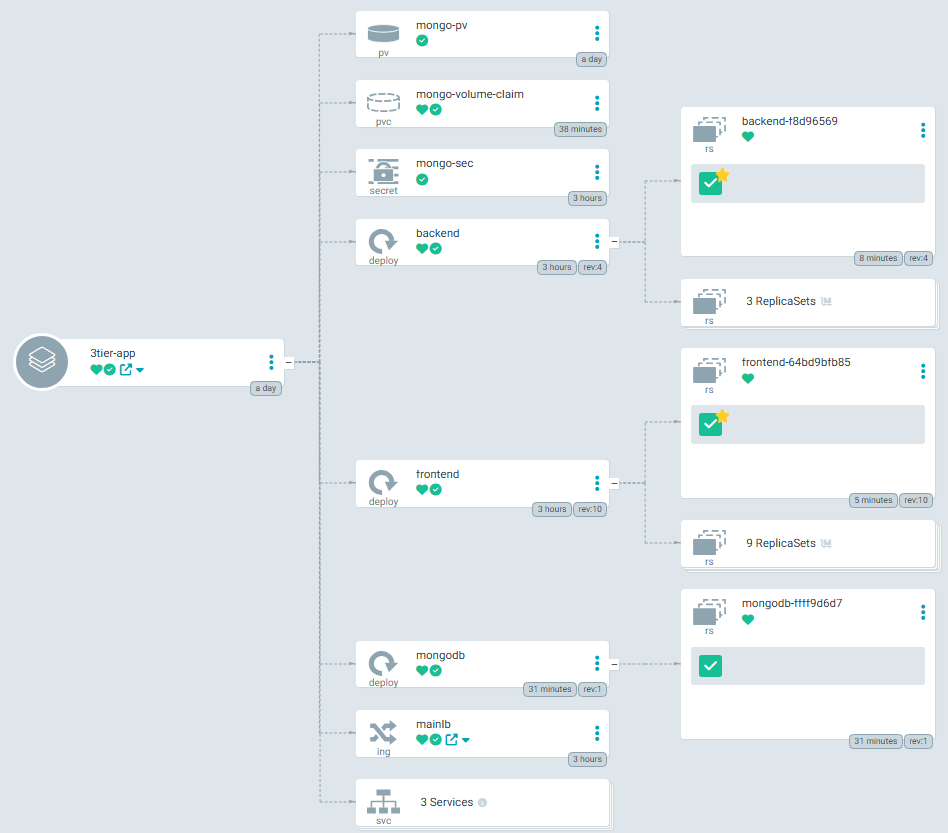
위의 구성도를 보면 3tier-app 안에 pv,pvc,secret,deploy,inggress, services 가 있고
각 deploy 에 하나의 pod 가 생성되 어 연결되 어 있고
github 에서 커밋 하여 이미지가 새로생성될 때마다 백업을 위한 ReplicaSets 가 생성되는 것을 볼 수 있다.
AWS 에서 확인
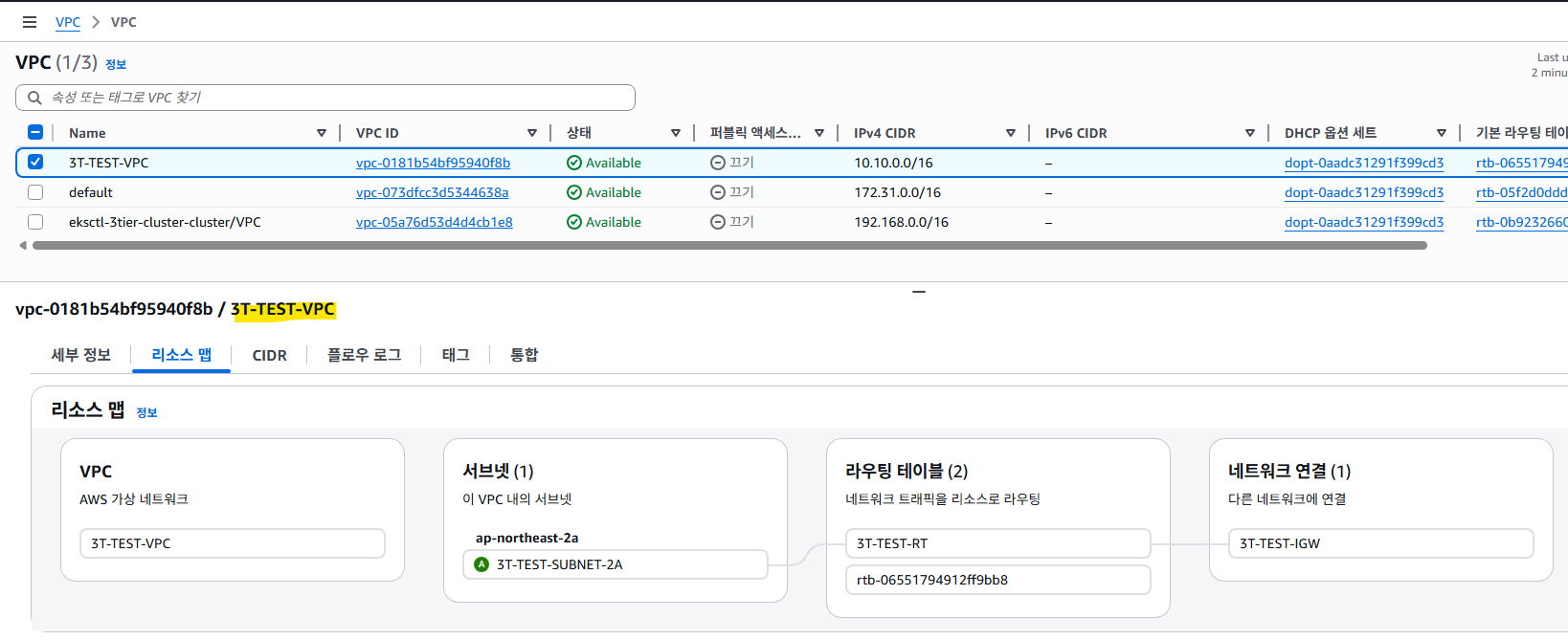
작업용으로 생성한 VPC
이미지 배포용 리포지토리
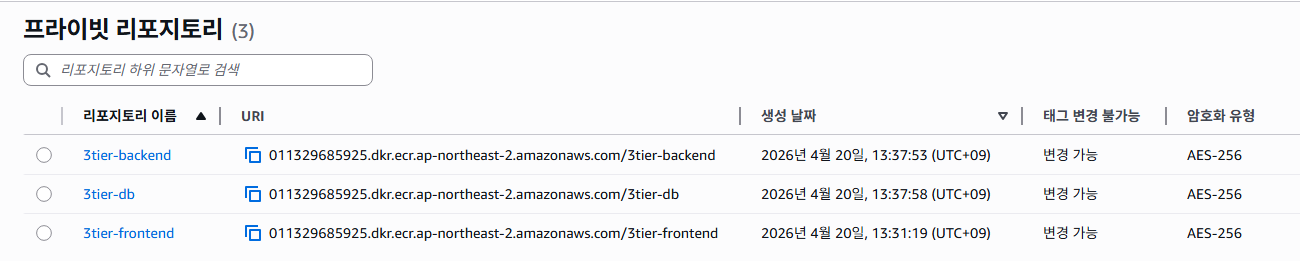
스택

Kubernetes 클러스터에 의해 생성된 볼륨

Kubernetes 클러스터에 의해 생성된 VPC

Kubernetes 클러스터에 의해 생성된 서브넷
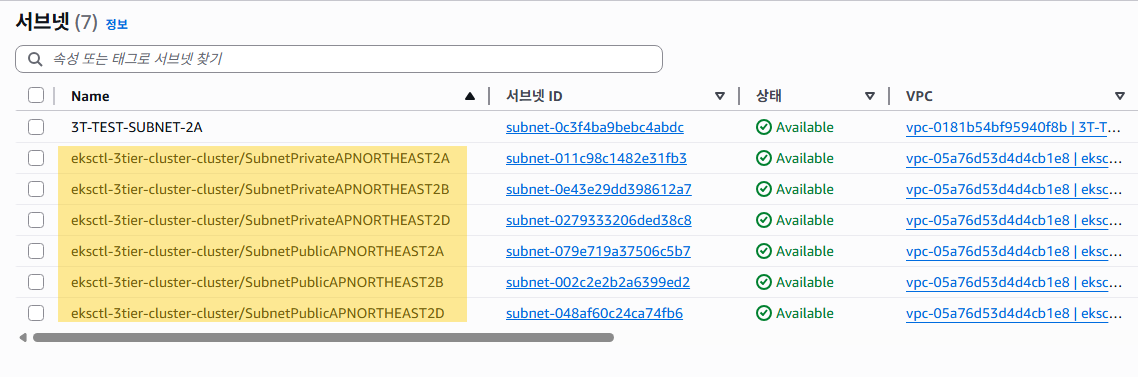
Kubernetes 클러스터에 의해 생성된 라우팅 테이블

Kubernetes 클러스터에 의해 생성된 인터넷 게이트 웨이

Kubernetes 클러스터에 의해 생성된 NAT 게이트웨이

Kubernetes 클러스터에 의해 자동 생성된 보안그룹
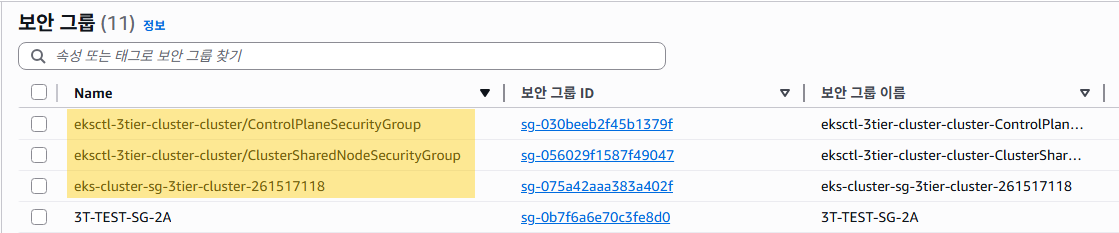
Kubernetes 클러스터에 의해 자동 생성된 노드 인스턴스
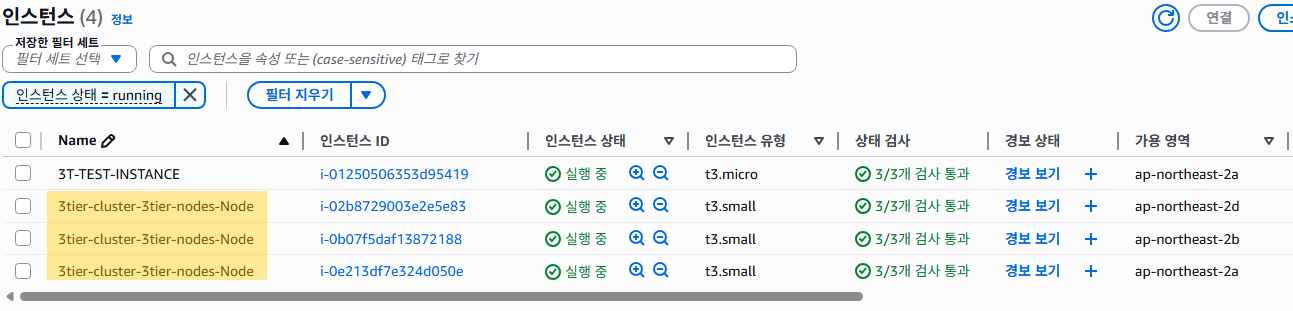
Kubernetes 클러스터에 의해 생성된 네트워크 인터페이스

Kubernetes 클러스터에 의해 생성된 로드밸런서


argocd

확인이 끝났으면 전부 제거한다.
# 네임스페이스의 모든 리소스 삭제
kubectl delete all --all -n 3tier-test

# 클러스터를 삭제하기 전에 반드시 아래 명령어를 먼저 실행
kubectl delete svc --all -n 3tier-test
kubectl delete ingress --all -n 3tier-test

# 클라우드포메이션의 클러스터와 스택을 삭제(15분 정도 소요)
eksctl delete cluster --name 3tier-cluster --region ap-northeast-2

aws cloudformation delete-stack --stack-name eksctl-3tier-cluster-cluster --region ap-northeast-2

# EC2 > 볼륨 에서 생성된 DB 볼륨 삭제
# 인스턴스, 로드밸런서, 보안그룹,
# 인터넷게이트웨이, NAT게이트웨이, 라우팅테이블,
# 서브넷, VPC 등 남아있는 자원 없는지 확인한다.
'클라우드 | 가상화 > AWS' 카테고리의 다른 글
| AWS + kubernetes 3tier 설정 (0) | 2026.04.19 |
|---|---|
| AWS - 5. Nginx <-> Tomcat 통신, RDS 설치 (0) | 2025.12.10 |
| AWS - 4. 이중화(ALB) 및 Tomcat 설치 (0) | 2025.12.09 |
| AWS - 3. NGINX 설치 및 이중화(CLB) (0) | 2025.12.05 |
| AWS - 2. VPC생성하여 쉘접속 (0) | 2025.12.03 |